
Edit
Edit content
For editors: save and publish, changes that other editors see, discard, two saves at the same time, media, and how to undo a change.
5 min readThis guide is for the people who write and change the content of a website in Mica. You need no technical knowledge. "Help for editors" in the menu of Mica opens this page.
Save and Publish
Mica has two steps.
- Save keeps your change in Mica. The website does not change yet. The page then shows "Saved · not published".
- Publish sends your saved changes to the website. The website is built again, which usually takes a few minutes.
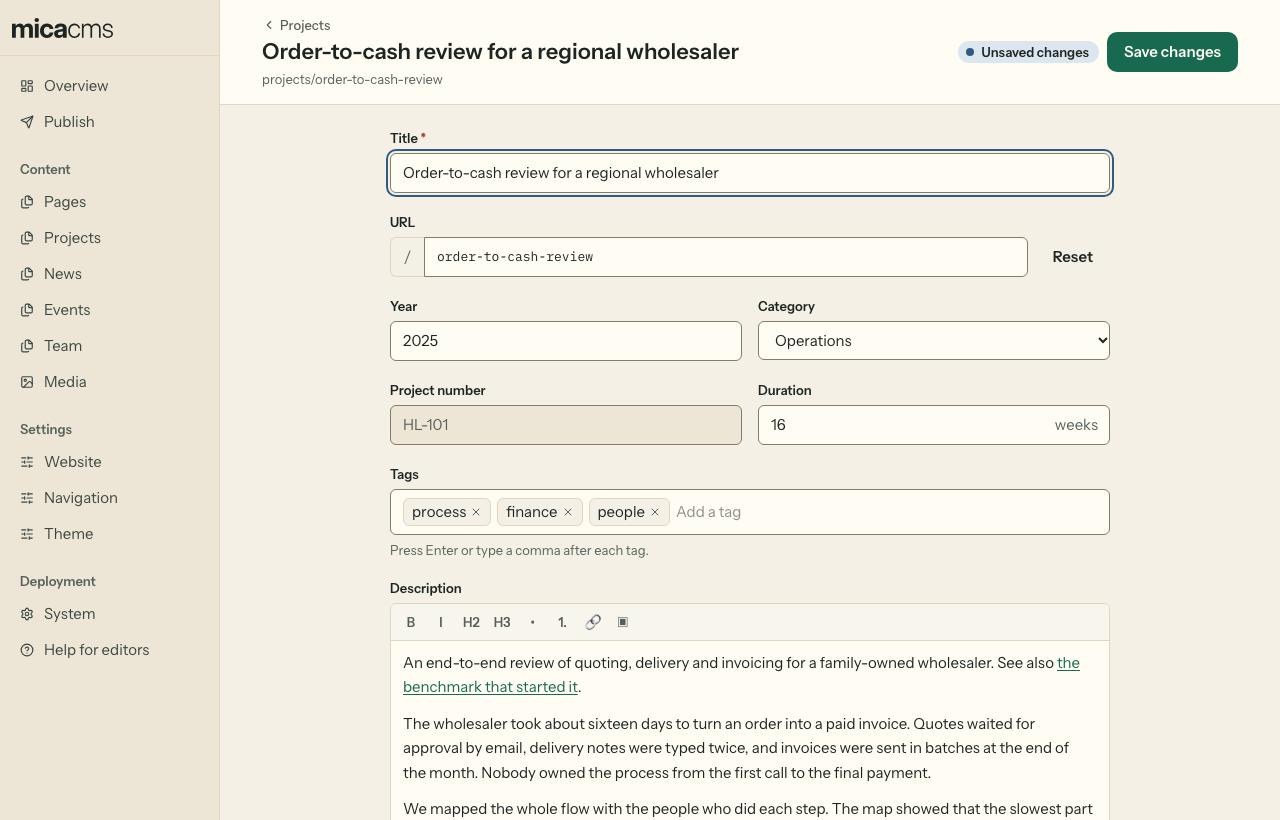
Save often. A saved change is safe: you can close the browser and come back tomorrow. Pressing Enter in a text field also saves.
A field with a red star (*) is required. You can save without it, but you cannot publish until it has a value. A grey field is read-only: you can read it, but not change it.
Other editors see your saved changes
All editors of a website work on the same saved changes. A colleague sees your saved change on the Publish page, and can publish it. Tell your team before you publish changes that are not yours.
Publish your changes
Open Publish in the menu. The page shows each saved change, with the value Before and After.
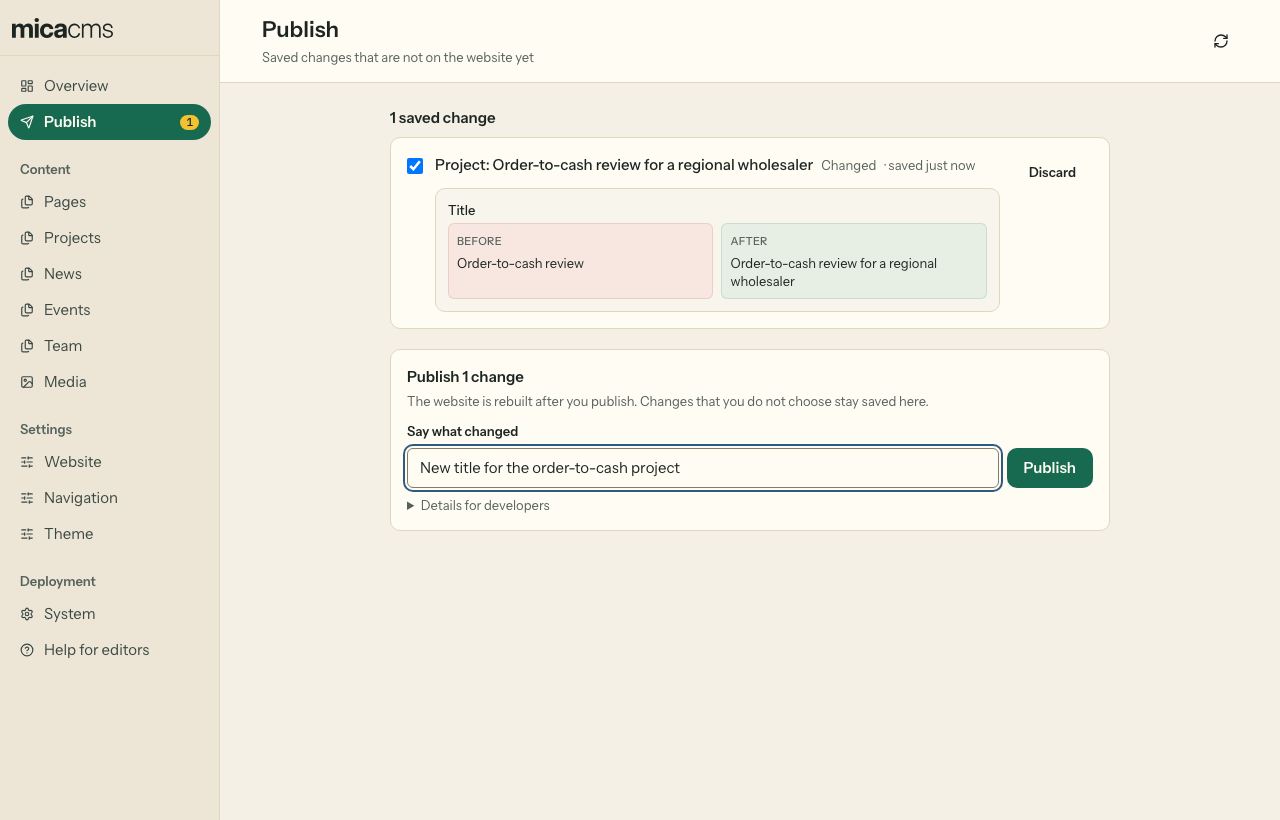
- Choose the changes to publish. The changes that you do not choose stay saved.
- Write a short note in Say what changed, for example "New opening hours".
- Select Publish.
Mica then says "Your website is being rebuilt now." When the website is ready depends on your hosting, usually a few minutes. If Mica says "Published in Mica, not on the website yet", it tries again every minute. You do not have to do anything.
Discard a change
To remove a saved change, select Discard changes on the entry, or Discard next to the change on the Publish page. The entry goes back to the version on the website.
Mica discards, deletes and publishes only what you saw. When a colleague saved the entry or moved an entry in the list after you opened it, Mica stops and shows the newer version. Look at it, then try again.
Two saves at the same time
When a colleague saved the same entry while you were editing it, Mica shows "Somebody else saved this while you were editing", with their version and yours. Choose:
- Keep mine: your version replaces theirs. Mica notes who chose it.
- Use theirs: your changes go, and you see their version.
When the website changed after you saved, for example because a developer changed the same text, the Publish page shows it. Choose Keep my version or Use the website's version.
When your session ends
After some hours, you must sign in again. When that happens while you edit, Mica keeps your changes in the browser tab. Sign in again, and select Restore them.
Images and files
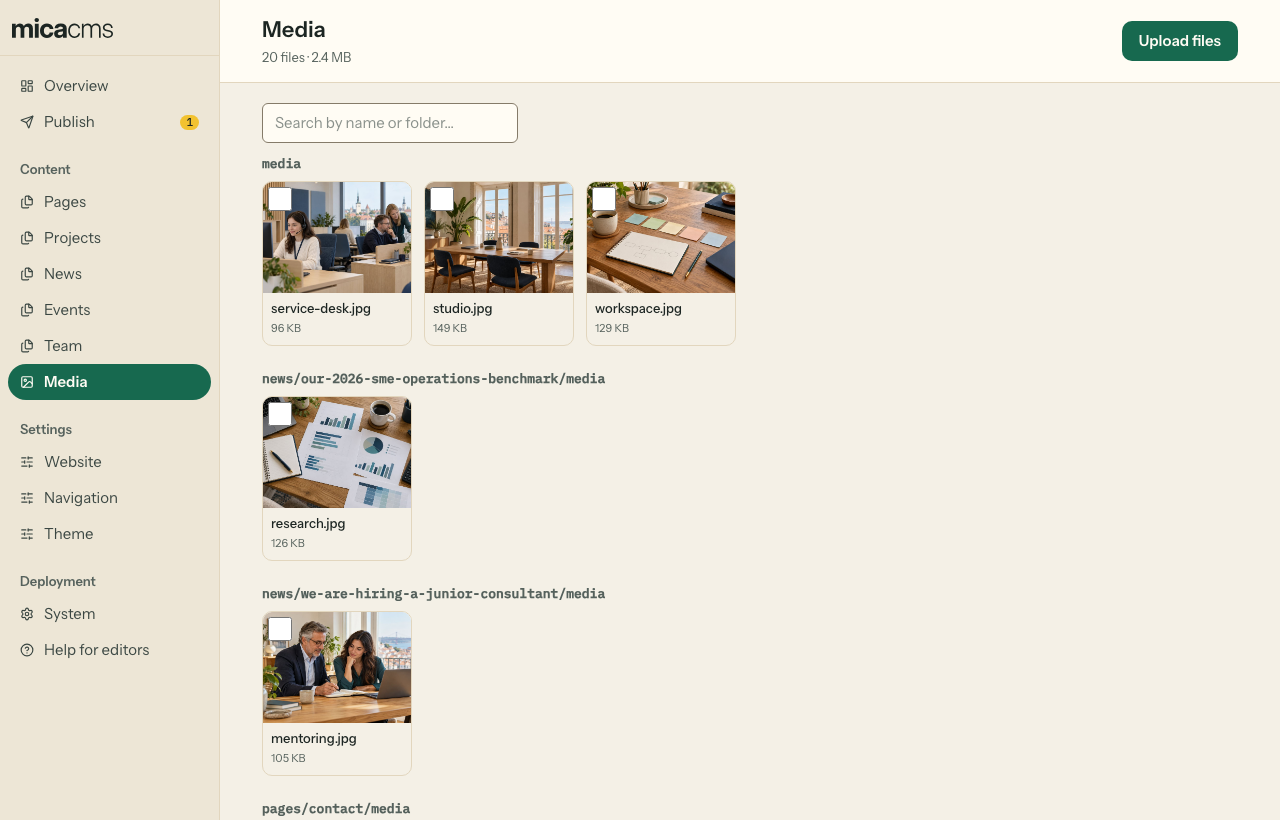
- Upload an image in its field, or on the Media page.
- Write the alt text in the field, under the image. The alt text tells people who cannot see the image what it shows. It belongs to the place where the image is used, so the same image can have a different alt text on another page.
- You can delete a file on the Media page when no entry uses it. Mica tells you which entries use a file.
- You cannot rename a file. Upload it again with the new name, and change the entries that use it.
Tables and images in the text
When a text field shows the Table and Image buttons, you can add them to the text.
- Table adds a table with a header row. In a table, a second row of buttons adds and deletes rows and columns. Each cell holds one line of text.
- Image opens the media library. Choose or upload an image, then write its alt text. To change the alt text later, select the image and select Image again.
- Save a new entry once before you add an image to its text.
Some tables and images that a developer wrote stay read-only, for example an image inside a line of text. Mica then says why.
Order and links between entries
- In a list that has a handle (⋮⋮) at the start of each row, drag the rows into the order of the website. This is the same everywhere: the entries of a collection, a list of items in a form, the chosen entries of a field such as the team of a project, and the files of a media field. With the keyboard, press Space on the handle, move with the arrow keys, and press Space again. The arrows at the end of a row move it one step. For files, they move it one step earlier or later.
- A field that names other entries, such as the team of a project, finds an entry as you type its name.
Light or dark
The editor follows the light or dark mode of your computer. To choose one, select Light or Dark under Appearance at the end of the menu. System follows your computer again. Your browser keeps the choice.
Undo a published change
To undo a change that is on the website, change the entry back and publish again. To undo a whole publish, ask your developer: Git has each version of the website, and a developer can restore one. See Scope.
When something does not work
Open System in the menu, and select Copy report. Send the report to your developer. It contains no passwords.